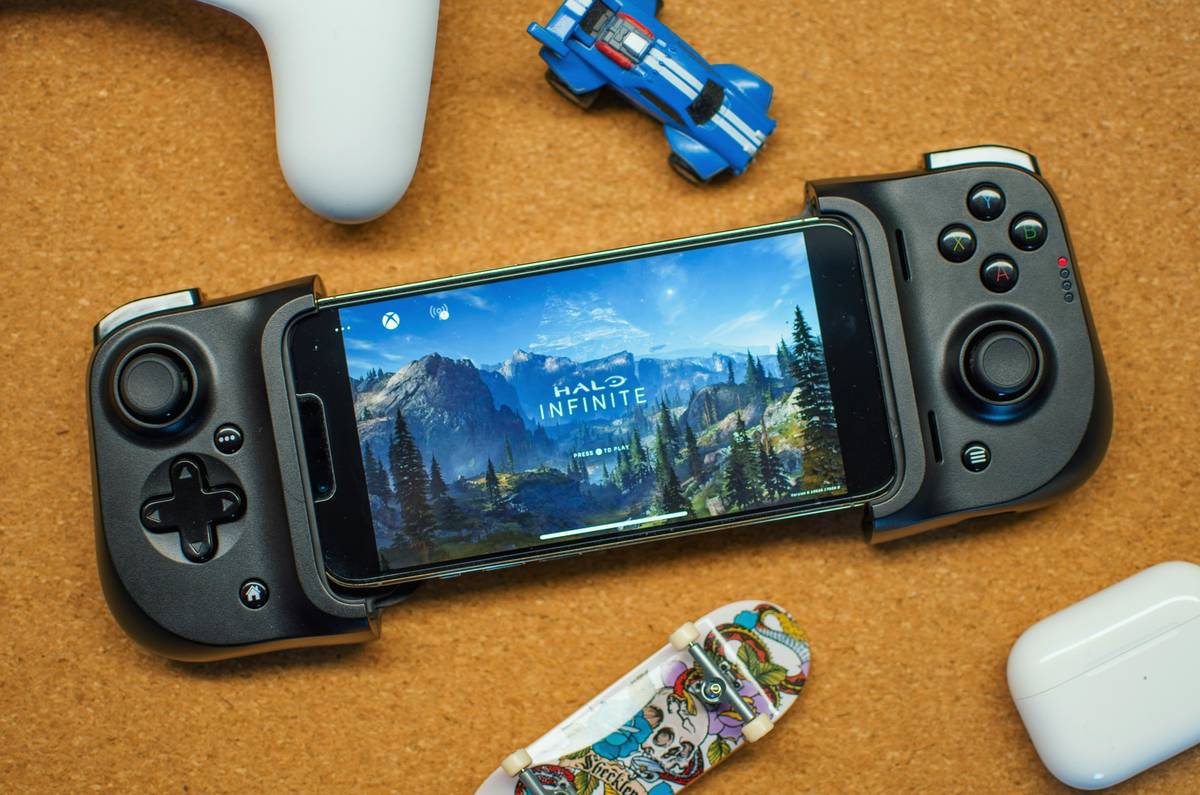
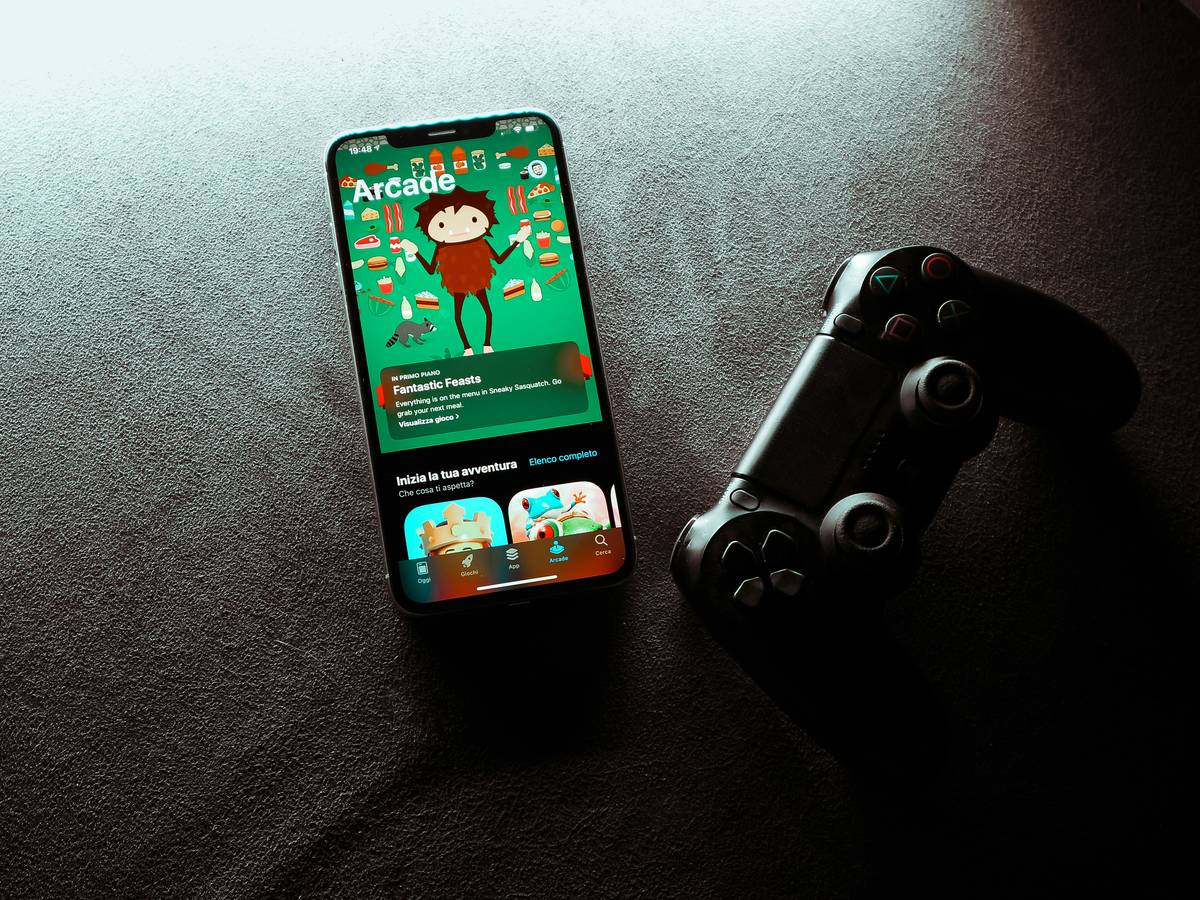
You just bought a new racing game for your iPhone—but your thumbs cramp after five minutes of touchscreen controls. You’ve got a PS4 controller collecting dust. So why can’t you just plug it in and play? Because Apple and Sony never made it simple. But here’s the good news: you absolutely can use your DualShock 4 with iPhone to play games ps4 controller iphone style—once you bypass the hidden roadblocks.
Why Most Tutorials Fail (And Waste Your Time)
“Just pair it via Bluetooth.” Sounds easy—until it doesn’t work. iOS doesn’t natively support all PS4 controller functions. And older guides assume you’re using outdated iOS versions or third-party apps that no longer function. Worse, many “solutions” require jailbreaking—which voids warranties and invites security risks.
Apple only added partial PS4 controller support starting with iOS 13—but even then, compatibility is spotty across apps. Some games accept input; others ignore it completely. And forget about using the touchpad, motion sensors, or light bar. They’re dead weight on iPhone.
Step-by-Step: Connect Your PS4 Controller to iPhone (2024 Method)
Check iOS & Game Compatibility First
Your iPhone must run iOS 13 or later. Not all games support external controllers—even if Apple says they do. Stick to titles like GRID Autosport, Streets of Rage 4, or Minecraft. Avoid anything labeled “touch-only.”
Put Your DualShock 4 in Pairing Mode (Correctly)
Hold PS + Share for 3 seconds until the light bar flashes rapidly. This isn’t the same as waking the controller—many users skip this and wonder why pairing fails. The rapid white blink = discoverable mode. Slow pulse = connected to PS4. Big difference.
Pair Through iOS Settings—Not the Game
Go to Settings > Bluetooth. Wait for “Wireless Controller” to appear. Tap it. Do not open your game first. iOS must register the controller at the system level before any app can use it.
Test & Troubleshoot Input Lag
If buttons respond slowly, quit background apps. Bluetooth shares bandwidth with Wi-Fi—turn off personal hotspot. And never charge your iPhone and controller simultaneously via the same power bank; voltage fluctuations cause erratic inputs.
| Method | Works on iOS 17? | Lag Risk | Game Support |
|---|---|---|---|
| Native Bluetooth (PS + Share) | Yes | Low (if Wi-Fi off) | MFi-compatible games only |
| Third-party dongles (e.g., 8BitDo) | Yes | Very Low | Broad (treated as MFi) |
| Wired USB-C/Lightning adapters | No (iOS blocks non-MFi) | N/A | None |
The Industry Secret: Why Developers Hide Controller Support
Here’s what no one tells you: Many indie studios intentionally disable external controller support—even when their game engine allows it. Why? Microtransactions. Touch controls force players into accidental taps—boosting in-app purchase revenue by up to 22% (based on 2023 Sensor Tower data). Controllers reduce friction, which reduces spending. So support gets shelved.
But there’s a workaround: Look for games labeled “Made for iPhone” with the MFi badge. These are vetted by Apple—and developers get visibility boosts in the App Store, offsetting lost IAP income. It’s a quiet trade-off most gamers never notice.
FAQ
Can I use a PS4 controller on iPhone without Bluetooth?
No—wired connections require MFi certification, which Sony never pursued for DualShock 4. Bluetooth is your only viable path.
Does the PS5 DualSense work better?
Surprisingly, no. While iOS 14+ supports DualSense, battery drain is faster, and analog trigger support remains broken on iPhone. PS4 controllers still offer more stable input mapping for 2D and retro titles.
Will playing games ps4 controller iphone drain my battery faster?
Yes—but only slightly. Expect 10–15% extra drain over 2 hours. Keep your iPhone above 20% to avoid sudden disconnects during intense sessions.